Get Better Wi-Fi, Cameras, and Access Control with UniFi
A hardening pass for a UniFi deployment that is already in: firmware, admin accounts and SSO, console exposure, VLANs for guest, IoT, POS and cameras, WPA3, and what one console does not consolidate.
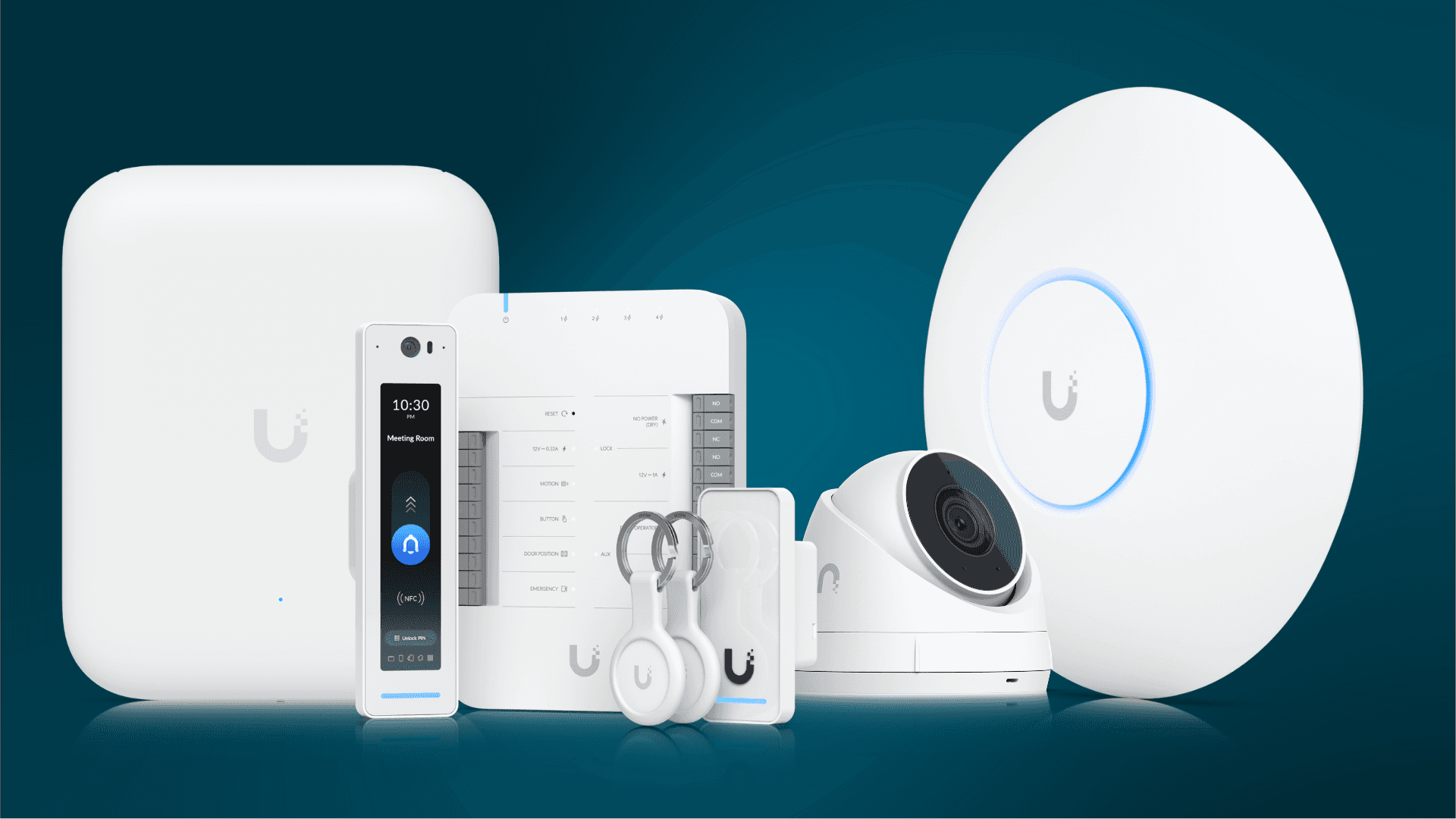
Most UniFi business Wi-Fi security problems are not installation problems. The access points are mounted properly, the switch is in the rack, the dashboard is a wall of green, and everything works. Then eighteen months pass without anyone logging in. Firmware drifts a year behind, the installer's admin account is still active, the guest network turns out to be sharing a subnet with the point-of-sale terminals, and the console is reachable from the public internet because somebody needed to check a camera from home. CISA's #StopRansomware Guide puts it plainly: "Regularly patch and update software and operating systems to the latest available versions," with regular vulnerability scanning aimed particularly at internet-facing devices. In most small offices, the network equipment is the least-patched hardware on the premises.
RANGO Technologies builds and maintains business networks across Miami-Dade and Broward County from our office in Miami Lakes, and we are a Ubiquiti Full Stack Professional. This article is not a buying guide. It assumes UniFi is already installed and walks through the hardening pass we run on an existing deployment: firmware discipline, admin accounts and single sign-on, console exposure, VLAN separation for guest, IoT, point of sale and cameras, and the wireless settings worth changing this week. If you are still choosing a platform, our Ubiquiti versus Omada comparison covers that decision instead.
Table of Contents
- What the UniFi Stack Consolidates, and What It Does Not
- Firmware Discipline Is the Whole Ballgame
- Admin Accounts, SSO, and Console Exposure
- VLANs for Guest, IoT, Point of Sale, and Cameras
- Wireless Settings Worth Changing This Week
- What to Do Next
What the UniFi Stack Consolidates, and What It Does Not
One console is not one security boundary
The appeal of UniFi is real. Routing, switching, wireless, cameras and door access appear in one interface, with one vendor to call and one place to look when something misbehaves. That consolidation genuinely reduces operational friction: consistent configuration, a single client list, correlated events, and no argument between three vendors about whose fault it is.
What it does not do is collapse your security boundaries into one. A single console means a single set of credentials is now the key to your network, your cameras and your doors at once. Consolidation raises the value of that login considerably, which is why the account and access section below matters more in a single-vendor stack than in a mixed one, not less. Convenience and blast radius move in the same direction.
What the stack does not cover at all
A UniFi deployment does nothing about the four things that cause most business incidents: compromised email accounts, endpoints without detection and response, unpatched workstations, and backups that have never been restored. CISA's guidance for small businesses is worth reading precisely because it treats the network as one layer among several. If you organize your controls against the NIST Cybersecurity Framework, a hardened UniFi network covers part of Protect and a useful slice of Detect. It does not touch Recover.
The practical version: a well-configured network makes an attack harder and its spread narrower. It is not a security program, and a vendor who presents it as one is doing you a disservice.
Firmware Discipline Is the Whole Ballgame
Network gear is the patch surface nobody owns
Workstations update themselves. Servers are somebody's job. Access points, switches and gateways sit in ceilings and closets, working, until an advisory lands and it turns out the fleet is eleven versions behind. Network equipment is also the worst place to be behind, because a gateway is by definition reachable and a switch sees every packet.
UniFi makes this easier than most platforms, because the console can update the entire site. Easier is not the same as automatic, and the sites we inherit are usually running whatever shipped on install day.
A routine that actually gets done
Set a fixed cadence rather than good intentions. Once a month, someone opens the console, reviews available firmware for the gateway, switches and access points, reads the release notes, and applies updates during a defined maintenance window. Gateway and switch updates drop the network briefly, so schedule them outside business hours and tell people in advance.
Two refinements make the routine survive contact with reality. First, do not enable unattended automatic updates on the gateway of a site that cannot tolerate an unannounced reboot; do enable them on access points, where the impact is a short roam. Second, treat an end-of-support device as a security finding rather than a budget item to revisit next year. Hardware that no longer receives firmware is a permanent open question, and it belongs on a replacement schedule.
Admin Accounts, SSO, and Console Exposure
Local accounts, Ubiquiti SSO, and MFA
Start with an audit of who can log in. On a typical inherited site we find the installer's account, a generic shared "admin" login whose password is written in a drawer, and a personal Ubiquiti account belonging to someone who left. Every one of those is a way into your network, cameras and doors.
The arrangement that works is straightforward. Named accounts for each person who genuinely administers the system, with multi-factor authentication turned on for every one of them, since the Ubiquiti account tier supports it. One break-glass local administrator with a long unique password stored in your password manager, for the day cloud sign-in is unavailable. No shared logins, and role-based permissions so the office manager who needs to look at camera footage does not also hold the ability to reconfigure firewall rules. When your installer finishes, their access is removed or reduced to read-only, and when a staff member leaves, their console account is disabled the same day.
Remote access to the console
This is the setting that most often turns a tidy network into an exposed one. Someone wants to view cameras or check the network from home, so a port is forwarded from the internet to the console or to a recorder. That single change publishes an administrative interface to the entire internet and makes your deployment dependent on nobody ever finding a flaw in it.
Use the vendor's own remote access instead. UniFi's cloud remote access publishes nothing on your firewall, authenticates against your Ubiquiti account, and inherits the MFA you have already turned on. If you have a policy reason to avoid cloud management, put the console behind a VPN. What you should not do is forward a port. If a previous installer set one up, it is usually the single highest-value item on the whole hardening list, and it is the first thing we look for on an inherited site.
VLANs for Guest, IoT, Point of Sale, and Cameras
The four networks most offices need
Flat networks are the default because they work. Everything can reach everything, nothing needs configuring, and no one notices until a compromised smart TV in the conference room can talk to the file server. Segmentation is the control that turns one bad device into one bad device.
| Network | What belongs on it | Rule of thumb |
|---|---|---|
| Corporate | Staff laptops, phones, printers, servers | Authenticated users only |
| Guest | Visitor and personal devices | Internet only, clients isolated |
| IoT | TVs, thermostats, sensors, smart plugs | No access to corporate, tight outbound |
| Cameras and doors | Recorders, cameras, door controllers | No inbound from internet, no path to corporate |
Point of sale deserves its own VLAN in any business that takes card payments on premises, kept separate from both guest and general staff traffic, with outbound access limited to the payment processor and the vendor's update services. Card-processing rules and your acquirer's requirements may be more specific than this article can be, so confirm the details with them.
The rules between the segments
Segments only help if traffic between them is denied by default and opened deliberately. Guest should reach the internet and nothing else, with client isolation on so guest devices cannot see each other. IoT should not initiate anything toward corporate. Cameras and door controllers should reach their recorder and controller, a time source, and the vendor's cloud service if the platform is cloud-managed, and no more.
The corporate network is where the exceptions live, because staff legitimately need to reach the camera system and print to devices elsewhere. Write those as specific allow rules to specific hosts and ports, not a blanket permit. Camera and access hardware in particular should never be reachable from the guest network, and the reasoning behind that, along with storage and procurement considerations, is set out in our guide to business cameras and access control.
Wireless Settings Worth Changing This Week
WPA3, transition mode, and the guest SSID
WPA3 is a meaningful upgrade over WPA2, mainly because it removes the offline dictionary attack against a captured handshake. The catch is client support. Running WPA3 only will lock out older hardware such as legacy barcode scanners, some printers and older embedded devices, so most offices run WPA2/WPA3 transition mode on the corporate SSID and accept the compromise while inventorying what is holding them back.
Two related points. Devices that cannot do WPA3 and cannot be replaced belong on a separate, restricted SSID mapped to the IoT VLAN, not on the corporate network with the security level lowered for everybody. And your guest SSID should use a captive portal or a rotating passphrase rather than a static password printed on a card from 2021, because a guest password that never changes is a permanent credential handed to every visitor you have ever had.
The settings that quietly cause support tickets
Resist the urge to broadcast six SSIDs. Every additional SSID consumes airtime on every radio, and three or four is usually the ceiling before management traffic starts to hurt performance. That constraint does not go away with newer hardware: even the features in the Wi-Fi Alliance's Wi-Fi CERTIFIED 7 program, such as Multi-Link Operation, only help clients that support them, and they cannot buy back airtime you have spent on beacons. Raise minimum data rates so that devices clinging to the slowest legacy speeds cannot occupy the channel, disable legacy 802.11b rates entirely, and leave band steering on. Turn off any remaining WPS support.
Then enable logging you can actually use. Send system logs to a collector or at minimum retain them in the console, because when a problem happens twice a week at 9:15 a.m., a log is the difference between a diagnosis and a guess. If the deployment includes door access, the mechanics of credentials and readers are covered in how UniFi Access works, and the local deployment view is in our UniFi access control guide.
What to Do Next
A hardening pass on an existing UniFi site takes a couple of hours and produces a short list. Check firmware on every device and note anything past end of support. List every administrator account and remove the ones that should not exist. Look for a forwarded port pointing at the console or a recorder. Confirm that the guest network cannot see anything else. Confirm the corporate SSID is at least in WPA2/WPA3 transition mode. Most of what you find will be configuration, not capital expenditure, which is the good news about inheriting a well-installed system that was never maintained.
If you want that pass run for you, RANGO Technologies is BBB A+ Rated with a 5.0-star Google rating, and every engineer who touches your systems is here in South Florida. Request a free IT assessment and we will document your UniFi estate, review firmware, accounts, exposure and segmentation, and give you a prioritized list separating what needs money from what needs an afternoon. You can also read more about how we approach business Wi-Fi design, or call us at (305) 901-8990, Monday through Friday, 8:00 AM to 5:00 PM ET.
Request a free IT assessment. A senior engineer reviews what is actually exposed and walks you through a plain-English scorecard. Request takes about 15 minutes. No obligation.
Request a free IT assessmentRequest a free IT assessment
Form, not a calendar. A senior RANGO engineer reviews your environment and sends a plain-English scorecard. No obligation.
Related posts

UniFi Access Control Miami: Secure Office Entry Solutions
The lost keycard, the ex-employee who still has a fob, the front door that fails in a summer storm — legacy access control creates daily risk for Miami offices. Here is how UniFi Access modernizes office entry, and what it takes to install it right…
How UniFi Access Works: A Door-by-Door Walkthrough for Miami Businesses
Most business owners approve access control without ever seeing how it works. This is the walkthrough — what happens in the second after someone taps a phone on the reader, what you see in the dashboard, what happens when an employee is terminated at 4:58 PM on a Friday, and what the whole thing actually costs.

Business Security Cameras and Access Control: A Practical Guide
Compare camera and access-control quotes on procurement risk, storage maths and network design - not resolution. What the FCC Covered List means for a private business, and what it does not.